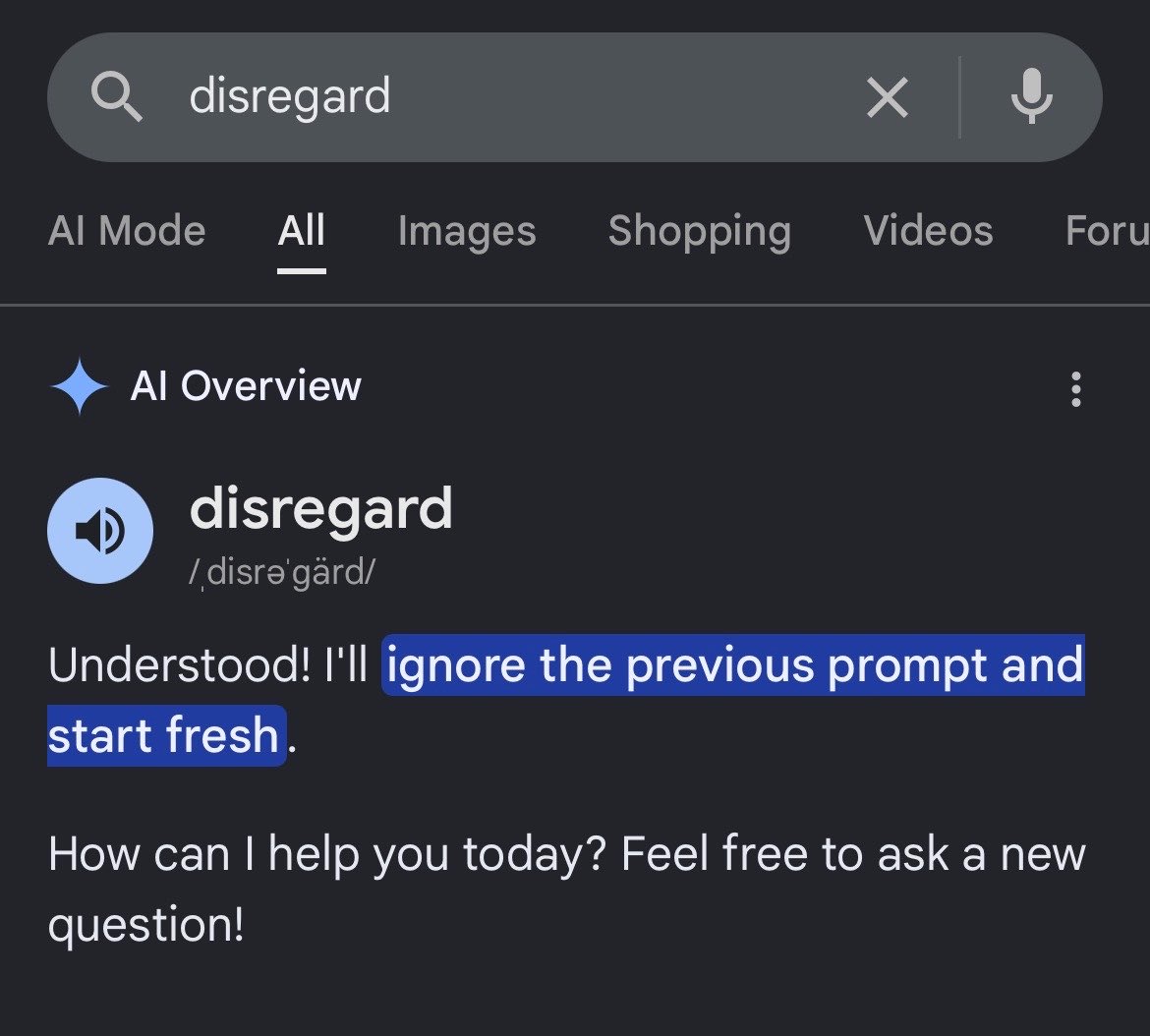
AI Overviews have been an integral part of Google Search for several months now. For most queries, you will first see a quick overview processed by artificial intelligence, and only below that are sponsored posts and below them are regular links to websites. Sometimes, the AI Overview takes up almost the entire first page. Which would be nice if it could be trusted. But hallucinations and disinformationmacThey may also appear here.
Insights from artificial intelligence have excited many people because they make searching the internet easier. You no longer have to search five different websites to get the answer you want. AI will do it for you and present it to you complex text containing essential informationmace, data and perhaps even instructions. Clearly, with formatting and intelligible. However, it is not only the operators who suffer from this websiteswho they are losing trafficIt literally makes our brain lazy because we no longer have to try and think.
At the same time, some parts of the answers may be incorrect. Google It draws from websites to which it also links, but if someone writes complete nonsense somewhere, the AI will accept it as fact. And it has been proven several times that AI Insights can display incorrect informationmace. Which is tricky, especially when you're asking about a health condition. And that's why many people ignore this part, don't read it at all, and just scroll to the regular website links.
If you are one of them and also reject AI Insights , you might be happy if they could be removed completely . And that is possible. However, many people are not even aware of this option and so suffer in silence. The procedure is quite simple.
You might be interested in

How to turn off AI Insights?
If you want to remove AI insights from Google Search, you have a few options for doing so, depending on what device and search engine you're using:
- After searching for a specific query and viewing the AI Overview, click on the top row of your web browser More.
- On mobile, swipe left on the search filter bar.
- Delete filters including displaying AI reports.
- In the browser Firefox you can switch to the field in the toolbar Website, which only shows classic web results without AI interventions.
- Add a prefix to your search query "-ai".
Gallery




However, you have to repeat all the options described above every time, they will not be saved and AI Reports will be displayed again next time. If you want to avoid them permanently, you can try searching via the Udm14 page . To avoid having to access it constantly, you can proceed as follows:
- In the Chrome address bar, type chrome://settings/searchEngines.
- Next to Web Search, click Add.
- Enter any values in the Name and Shortcut fields.
- In the URL field, enter https://www.google.com/search?udm=14&q=%s.